
The browser game runs after you open app.glob2.online. The public website’s handbook does not start the game itself. Use a desktop mouse and keyboard for these instructions, and click the game canvas to give it keyboard focus and activate audio.
Choose the right starting mode
Tutorial teaches actions in a controlled sequence. Campaign follows mission objectives. Custom Game lets you choose local maps, opponents, teams, and rules. Start locally before joining a live opponent so that food, staffing, and controls feel familiar.
An account and a browser save are different things. Saves and imported files belong to the browser profile and site address where you played. Signing in does not make those local files appear in another browser.
Save a useful decision point
In a local match, open the menu with Escape or the icon beside the minimap and choose Save game. Enter a recognizable name and confirm. Use separate names for an initial colony, a developed position, and a pre-attack decision if you want to retain all three.
Do not close the tab while the game is still writing. If a save or storage operation reports failure, use its retry/export option and read the result. A dismissed error is not a successful backup.
To resume, return to the main menu, choose Load, select the save, and confirm. A save recreates a playable state; a replay serves a different purpose.
Export before clearing site data
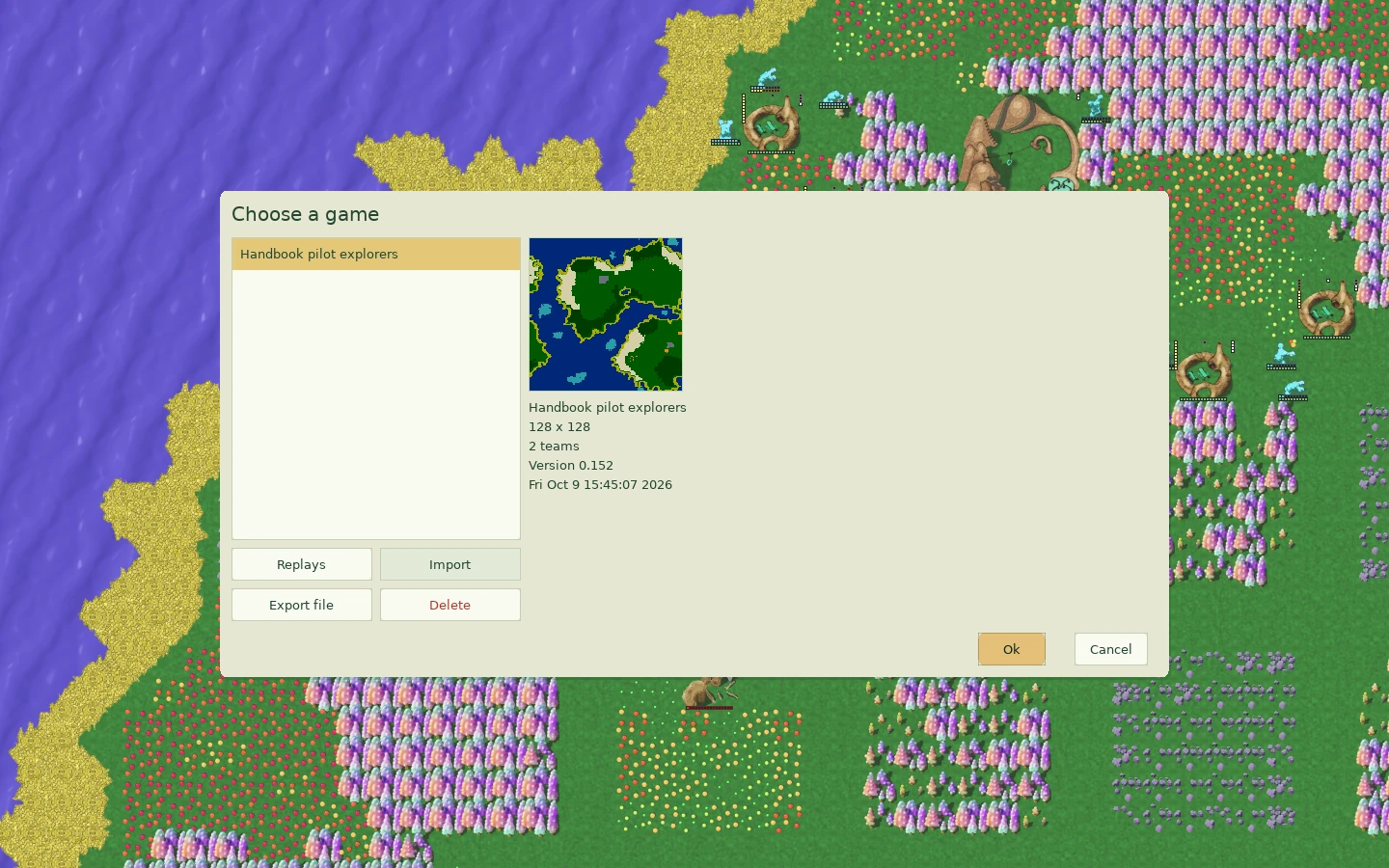
Open Load, select the file, and use Export to download it. Keep the downloaded copy somewhere you can find again. Export before clearing browser storage, changing browser profiles, or moving to a different browser.
Use Import in the appropriate file chooser to bring a compatible file back. The game checks type and structure and waits for browser persistence before reporting that it was imported. Duplicate names receive a numbered copy rather than replacing an existing file.
If an import fails, read the error. A corrupt or unsupported file is not fixed by repeatedly selecting it. A storage failure may offer a retry or an export of the bytes. Keep the original backup while investigating.
Campaign/tutorial progress has its own Import progress and Export progress controls. That backup preserves mission progress; it is distinct from a simulation save at a particular moment. Use the backup type that matches what you intend to keep.
Use replays to inspect a match
The results flow offers replay saving. Keep a replay when you want to review a fight, trace an opponent’s development, or inspect a timing decision. Replays follow the game’s command history and depend on compatible simulation versions.
Do not assume a replay can be loaded as a normal save or jumped to an exact tick on every build. Keep milestone saves as well when you want to play a decision again. Retain the game version alongside a replay you expect to use later.
When reviewing a failed attack, inspect the build-up as well as the fight: unit training, food, the march, and support services may explain more than the final casualties.
Record a short lesson or memorable moment
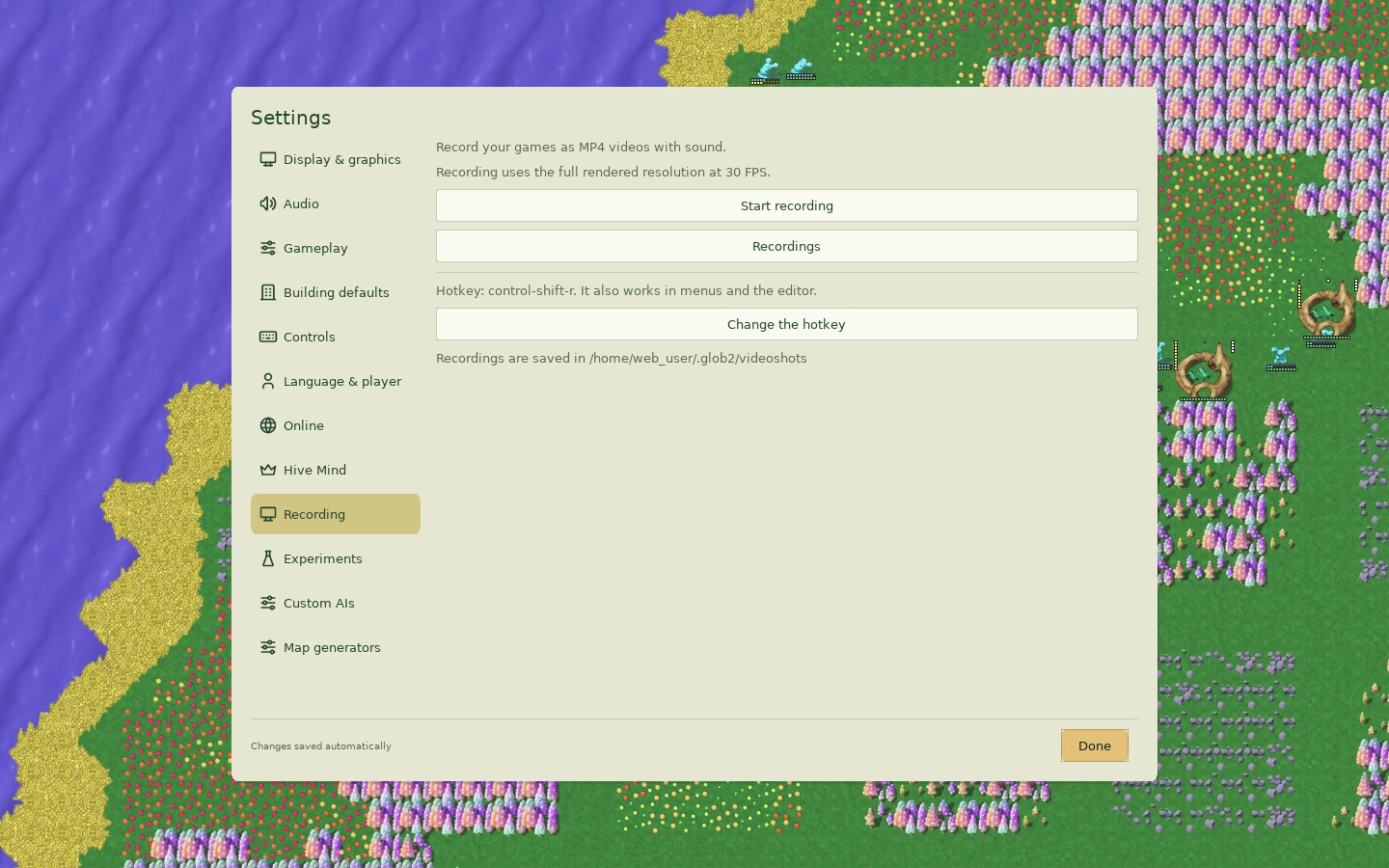
The game supports recording through its controls, with Ctrl + Shift + R as the default toggle. Settings’ Recording section lets you inspect its state; the Recordings screen provides export for finished files.
Wait for recording finalization and export a copy before clearing site storage. Recording files and simulation replays are different: a video preserves your visible perspective, while a replay follows compatible game commands. Browser storage availability and recording performance can vary, so check the output rather than assuming the toggle produced a usable file.
For a short shared explanation, a focused clip of the action and result is easier to follow than several minutes of unrelated play.

Prepare for online play
Choose Play online in the game to reach the online hub. Review the available rooms or queues and the account options the instance presents. Casual guest access and rated play are distinct; read the selected queue rather than assuming every game uses the same account requirements or opponent type.
Before joining:
- Learn the default controls in local practice.
- Check the room’s map, teams, rules, and opponent information.
- Use a compatible current client.
- Keep the tab active and allow the game to finish its connection/loading flow.
- Avoid starting a match when you cannot stay through it.
A local AI difficulty estimate is not the same as an online leaderboard rank. The modern platform’s authoritative ranking, provisional status, and rating scale belong to its rated-play context.
Troubleshoot without losing your files
Scroll to compare all columns ↔
| Problem | First check | Next action |
|---|---|---|
| Keys do not reach the game | Canvas focus and current dialog | Click the canvas; close or finish the dialog |
| Audio is silent | Browser interaction and game mute setting | Click the game and inspect audio settings |
| Save appears missing | Browser profile and exact site address | Return to the original profile/address or import your export |
| Import reports an error | File type, version, and storage message | Keep the original and follow the displayed retry/export route |
| Replay will not play | Simulation/version compatibility | Use the matching client where available; retain the original replay |
| Online entry fails | Current client, network, and hub message | Read the connection error and retry from the hub |
Use the game’s Quit flow for a controlled exit and allow storage to finish. Refreshing or abruptly closing a tab cannot wait for pending writes.