
A busy screen does not necessarily mean a productive colony. Learn to read the requests, resources, and unit needs behind the movement. This chapter uses desktop browser controls; keyboard bindings can be changed in Settings → Controls.
Find your bearings
Start a local Custom Game, then press P to pause while you inspect it. The main map occupies most of the screen. The minimap and working sidebar sit on the right; colony counters run across the top.
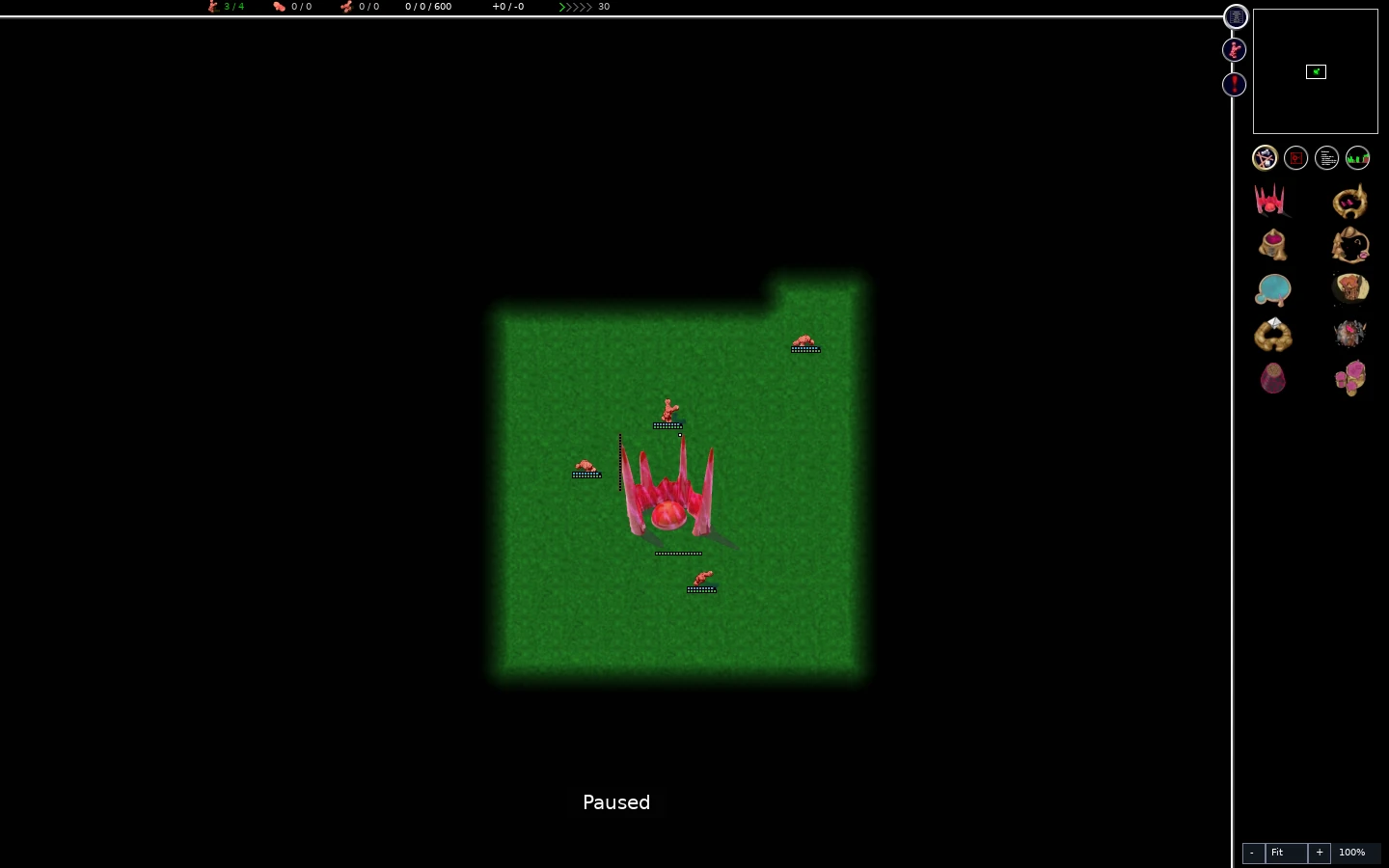
Use the minimap to move your view to another part of the map. Home brings you back to your colony. These change your camera; they do not send globs to that location. Clicking the game canvas gives the game keyboard focus. If a shortcut appears to do nothing, click the canvas before trying again.
The menu icon beside the minimap and Escape open the in-game menu. Use it to save, return to play, or quit through the game’s own controls. In a local practice match, P pauses and resumes the simulation. You can still inspect the interface while paused, but workers cannot deliver materials until you resume. Treat online pause and speed behavior as a match setting rather than assuming your local controls stop everyone else’s game.
Selection changes the sidebar
Left-click a building or glob to inspect it. Selection exposes information and the controls appropriate to that object. It does not make a glob follow conventional click-to-move orders.
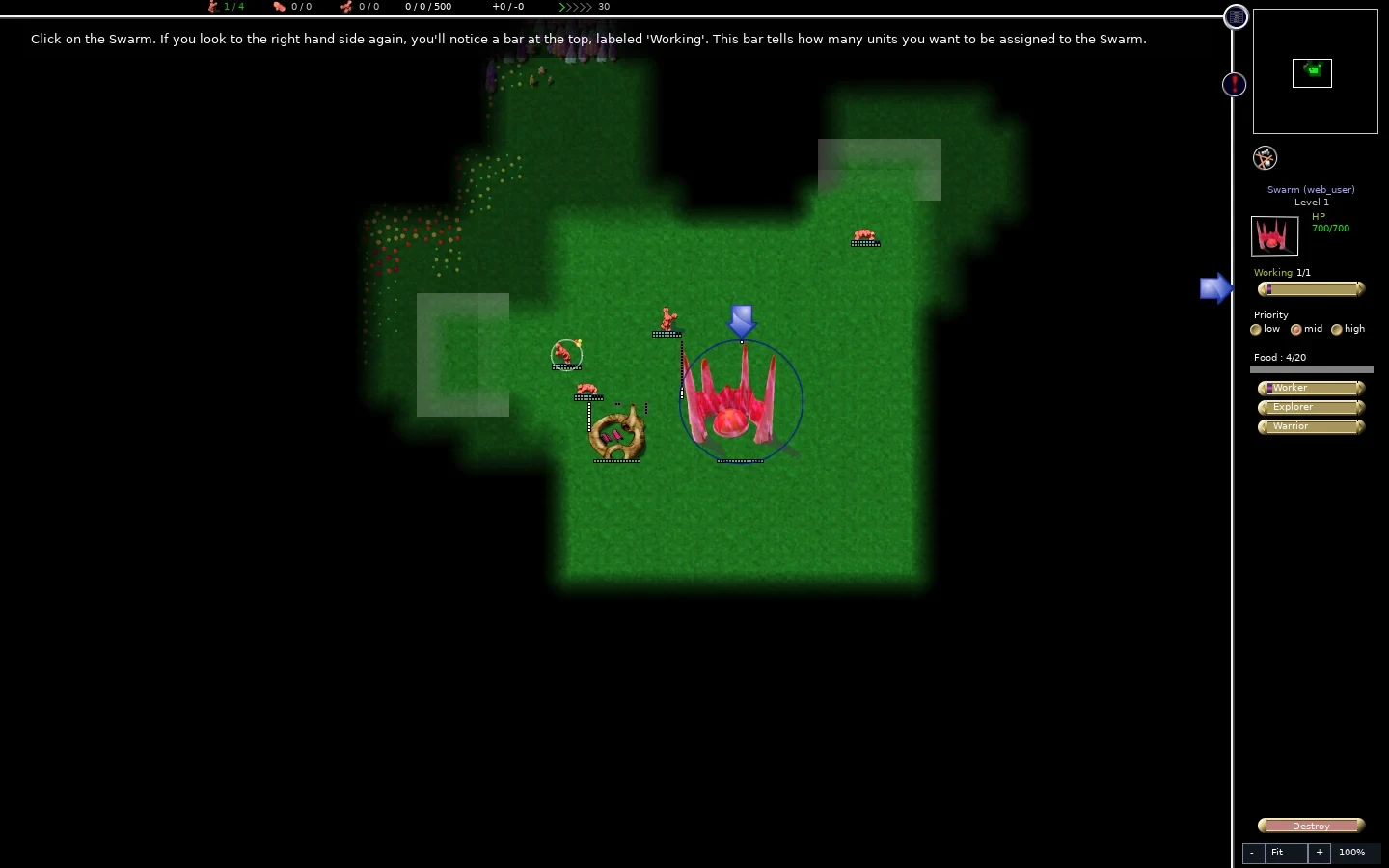
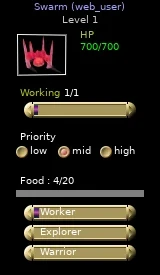
On a selected building, look for these distinct readings:
Scroll to compare all columns ↔
| Reading | What it tells you | Useful question |
|---|---|---|
| HP | Current health and maximum health | Is this structure damaged, or still under construction? |
| Working | Attached workers compared with requested workers | Have I asked for more labor than the colony can provide? |
| Material or Food count | What the building currently holds | Are resources arriving, or has delivery stopped? |
| Inside | Units currently using the service | Is this building busy, empty, or waiting for users to leave? |
| Priority | Relative hiring preference | Should this food job get workers before a less urgent site? |
| Production bars on a swarm | Mix of future Worker, Explorer, and Warrior births | Am I making the unit types I need? |
A building does not show every row: a construction site needs materials, an inn supplies meals, and a swarm creates units. Read the labels rather than transferring the meaning of a bar from one building to another.
On a selected glob, inspect nutrition, health, abilities, and current activity. Low nutrition calls for reachable food. Lost health calls for healing as well. A worker briefly leaving a job to eat is different from a worker being unable to reach that job at all.
Right-click clears a selection or cancels a placement tool. After clearing the selection, further right-clicks cycle sidebar views. Cancel before clicking somewhere else if you do not intend to place another building or flag.
Separate requests from available labor
The top bar’s unit counters show availability / total. They help you spot the balance between the colony and its commitments. The worker availability figure subtracts outstanding worker demand, so it can become negative. A negative value is a labor shortage signal; it does not mean workers have literally disappeared.
To investigate it:
- Select your inn and check that it has food and a sensible Working request.
- Select each unfinished site and compare its requested workers with actual attachments.
- Reduce a less urgent request or cancel an unnecessary project.
- Resume the game and check whether workers now reach the more important job.
The selected-building Working row and the swarm’s production mix solve different problems. Raising a Working request allocates existing workers. Raising Worker production asks the swarm to create future workers, requiring food and time. Increasing every request at once can deepen the shortage.
Use the statistics views
Clear any selection, then use the sidebar’s statistics icons below the minimap. The text view provides readings; the graph view helps you see change over time. Cycle the statistics page heading to inspect different groups of measurements.
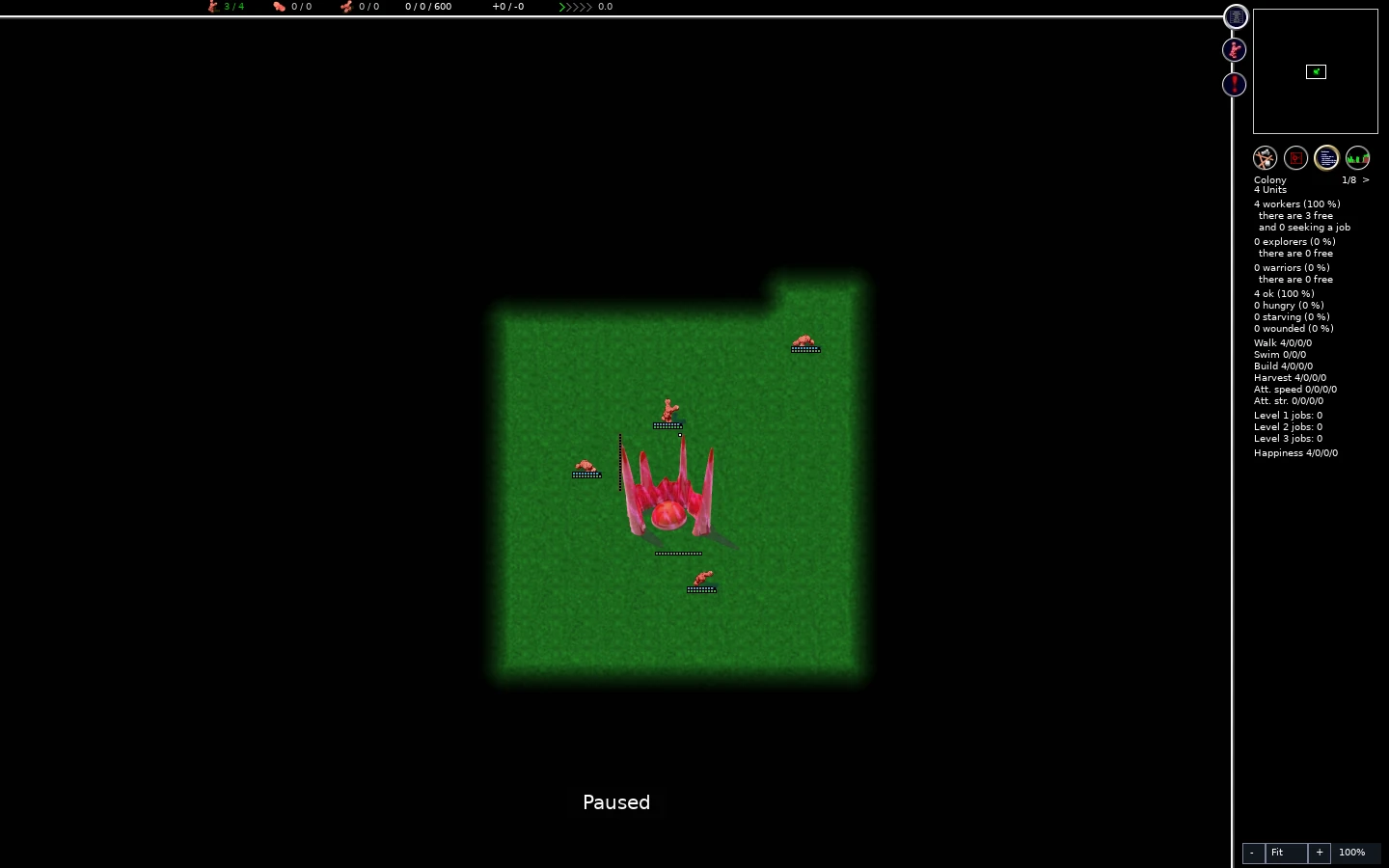
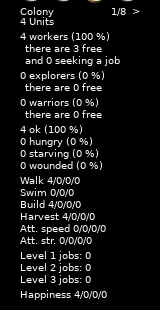
Use statistics to answer a specific question. Is food pressure rising as population grows? Are workers tied up while construction stalls? Did a fight leave many units needing recovery? A single number is less useful than a trend paired with a visible cause on the map.
The graph sidebar also offers map overlays for needs such as starving or damaged units. These help locate trouble; they do not repair it. After locating the affected globs, inspect food, routes, services, and staffing in that area.
Do not confuse prestige with your online rating. Prestige is an in-match victory measure. The online leaderboard uses the multiplayer platform’s ranking system. Learn how the top bar’s prestige readings affect a particular match in the match’s victory conditions and rules.
A few shortcuts worth learning first
Scroll to compare all columns ↔
| Default key | Action | When to use it |
|---|---|---|
| Escape | Open the game menu | Save, quit, or return to play |
| P | Pause or resume local play | Inspect a problem without letting it grow |
| Home | Return the camera to home | Recover your bearings after scouting |
| H | Open message history | Revisit tutorial instructions or events |
| Space | Go to an event; advance tutorial messages | Read the current tutorial prompt first |
| + or = / − | Increase / decrease selected building’s requested workers | Move labor between competing jobs |
| I | Toggle information drawing | Inspect map information without changing the simulation |
| T | Toggle unit-path drawing | Investigate a unit’s route |
| S | Toggle accessibility aids | Add visual distinctions to the map |
| Tab | Cycle your same-type selection | Find another owned glob or building of the selected type; the camera can move |
Building and area shortcuts use sequences. For an inn, press B, then I; those are separate key presses, not a simultaneous chord. The control reference lists more sequences. When a shortcut’s result surprises you, right-click to cancel, inspect the current selection, and use the visible control until you understand the mode.
Read the colony in a repeatable order
Try a thirty-second check each time you return home:
- Food: select an inn and check stored food and delivery.
- Labor: compare worker availability with the largest Working requests.
- Production: inspect the swarm’s future unit mix.
- Health: look for globs that need meals or healing.
- Projects: check whether sites receive materials and whether upgrades have room.
If everything is moving but one checkpoint is failing, solve that failure before adding more work. Continue with jobs, priorities, flags, and areas to turn those readings into deliberate colony management.