
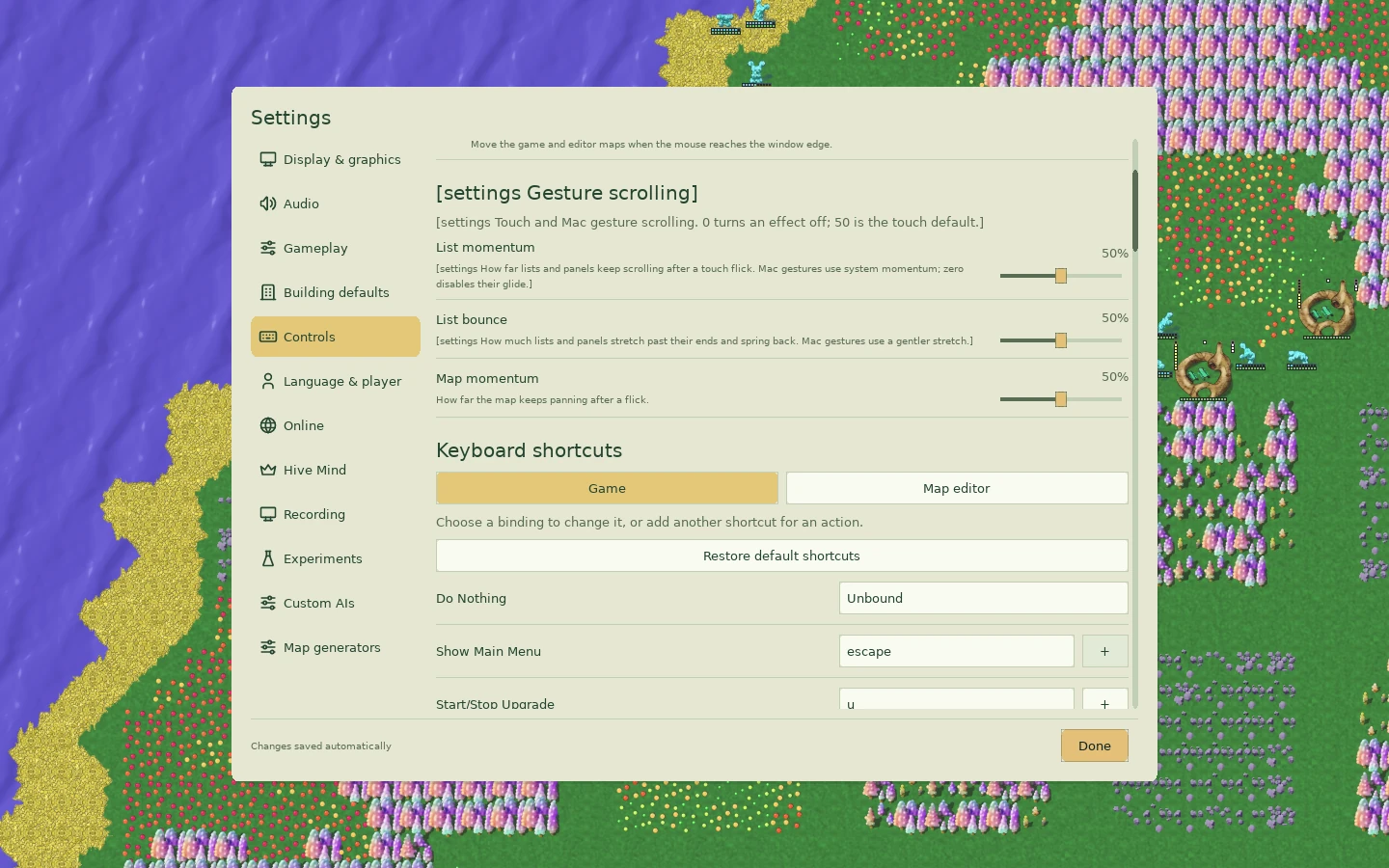
These are the default desktop bindings. Open Settings → Controls to check your own configuration. Click the canvas before using game keys. A sequence such as B → I means press B, release it, then press I; Ctrl + Shift + R means hold the modifiers while pressing R.

Mouse and selection
Scroll to compare all columns ↔
| Action | Result | Remember |
|---|---|---|
| Left-click a glob or building | Select it and show its information | Selecting a glob does not issue a movement order |
| Left-click with a building or flag tool | Place that object if the position is valid | Right-click afterward to stop placing |
| Right-click while selected or placing | Clear the selection or cancel the tool | Inspect the sidebar before the next click |
| Further right-clicks without a selection | Cycle the sidebar views | Construction, flags/areas, and statistics serve different tasks |
| Click the minimap | Move the camera | Camera movement does not move units |
| Click and drag with an area brush | Paint or remove the chosen area | Check add/remove mode and brush size first |
For a visual tour, see controls and the HUD.
Camera, information, and local play
Scroll to compare all columns ↔
| Default key | Action |
|---|---|
| Home | Return camera to home |
| G | Toggle torus view where the graphics renderer supports it |
| Tab | Cycle your own objects of the selected type; may recenter the camera |
| Escape | Open in-game menu |
| P or Pause | Pause/resume local simulation |
| H | Open history |
| Space | Go to an event; continue a tutorial message when prompted |
| I | Toggle information drawing |
| T | Toggle unit-path drawing |
| S | Toggle accessibility aids |
| M | Place a map mark |
| Ctrl + + or Ctrl + = | Increase game speed where allowed |
| Ctrl + − | Decrease game speed where allowed |
| Ctrl + Shift + R | Start/stop recording |
Pause, speed, and communication behavior depend on the session. Use local practice to learn controls before relying on them in a multiplayer match. Export finished recordings before clearing browser storage.
Selected-building actions
Scroll to compare all columns ↔
| Default key | Action | Check first |
|---|---|---|
| + or = | Increase requested workers | Existing labor, food needs, and competing jobs |
| − | Decrease requested workers | Whether the building still needs hauling or construction |
| U | Request upgrade | Builder training, materials, and room for a larger footprint |
| R | Request repair | Damage, worker supply, and materials |
| D | Request destruction | That you selected the intended object |
These act on the selected building. Production ratios are a separate control on the swarm; +/− on a selected swarm changes its worker request, not the mix of workers, explorers, and warriors.
Construction sequences
Scroll to compare all columns ↔
| Sequence | Building |
|---|---|
| B → A | Swarm |
| B → I | Inn |
| B → H | Hospital |
| B → R | Racetrack |
| B → P | Swimming pool |
| B → B | Barracks |
| B → S | School |
| B → D | Defense tower |
| B → W | Stone wall |
| B → M | Market, when available in the match |
A listed binding does not guarantee the building is enabled in a tutorial, scenario, or rule set. If the tool is unavailable, inspect the construction panel and the scenario instructions. A basic market is part of Standard play. Optional experiments extend its logistics; the ordinary market is not a colony-wide warehouse that automatically supplies every building.
Flags and area sequences
Scroll to compare all columns ↔
| Sequence | Tool |
|---|---|
| F → E | Exploration flag |
| F → W | War flag |
| F → C | Clearing flag |
| A → F | Forbidden area |
| A → G | Guard area |
| A → C | Clearing area |
| A → W | Farm area, when its experiment is enabled |
| A → A | Switch to adding areas |
| A → D | Switch to removing areas |
| A → 1 through A → 8 | Select area brush size/pattern |
Flags have their own staffing and radius controls after selection. Areas are painted on the map. A clearing order can remove resources you wanted to keep; practice a small patch before painting broadly.
When the result is unexpected
Right-click to cancel the current tool, then inspect the sidebar and selected object. If keyboard input is not reaching the game, click the canvas. If a sequence chooses the wrong tool, check Settings → Controls for customized bindings. If a tutorial has restricted the tool, continue its instructions rather than repeatedly issuing the shortcut.
For a stalled job, go back to jobs and flags. For a unit that cannot reach a destination, inspect movement and exploration.