
Your first goal is a working colony: an inn with food, a swarm producing the units you want, and workers keeping both supplied. The first tutorial lets you learn this without an opponent interrupting you.
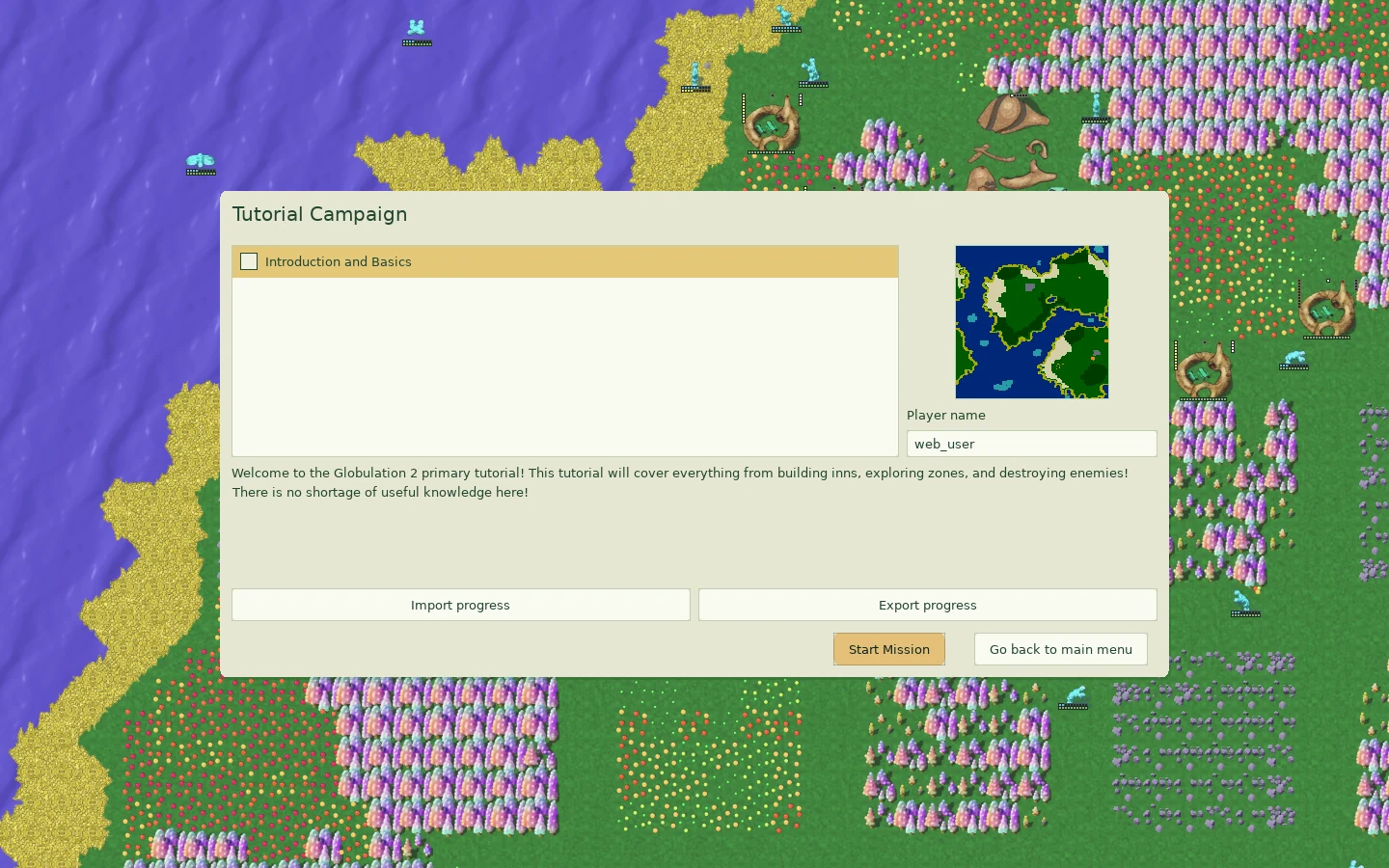
This walkthrough uses the desktop browser controls. Open the browser game, choose Tutorial, select Introduction and Basics in Tutorial Campaign, and choose Start Mission. Read each message before pressing Space to continue. Press H to revisit earlier messages. If you need time to inspect something, press P to pause, then press it again to resume. Resume before advancing the next tutorial message.
1. Read your starting colony
The tall red structure is your Swarm. It produces new globs. The small moving red glob is a worker. Watch it walk to the wheat, harvest, and bring food back to the swarm. Wheat appears as small yellow and orange dots on the grass; follow the worker’s route if you cannot immediately find the patch.
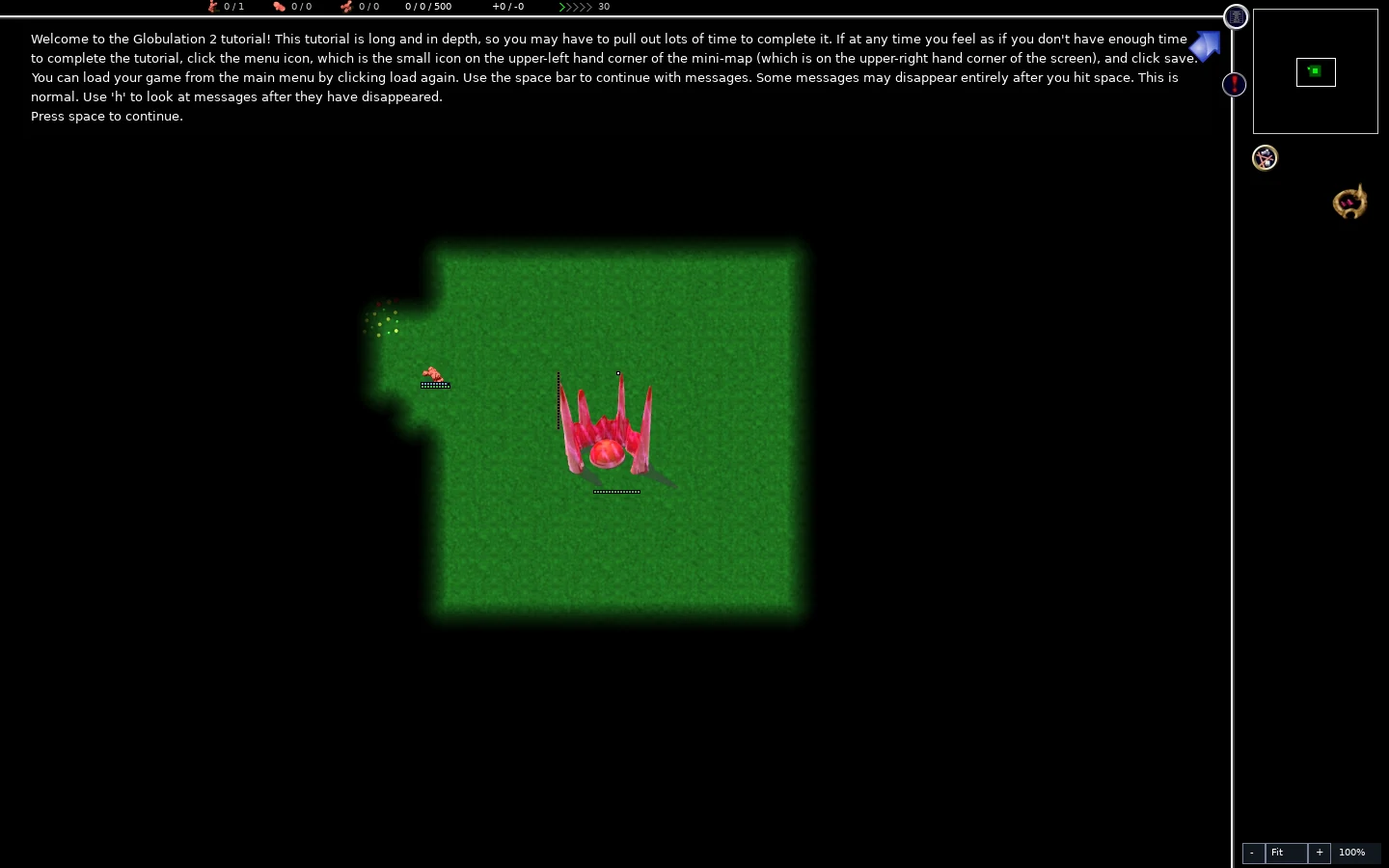
You organize jobs for the colony. The globs choose their routes and interrupt work when they need food or medical care. Selecting a glob lets you inspect it; it does not turn that glob into a unit you steer around the map.
Left-click the moving worker when the tutorial asks. Its information appears in the right sidebar. The blue bar under the glob shows its nutrition, which falls over time. The swarm’s food is for creating units. Existing globs need an inn to eat. Right-click to clear the selection when you are ready to build.
2. Build an inn beside the food supply
Advance to the tutorial’s inn instruction. Open the construction panel with the icon under the minimap, then choose Inn. With the default keyboard bindings, you can also press B, then I.
- Find empty grass near the wheat your worker visits.
- Move the building preview over that grass. Leave the wheat intact and leave room to walk around the inn and swarm.
- Left-click once to place the site.
- Right-click to leave placement mode, so another click does not place a second inn.
- Select the site and watch its resource and Working information.
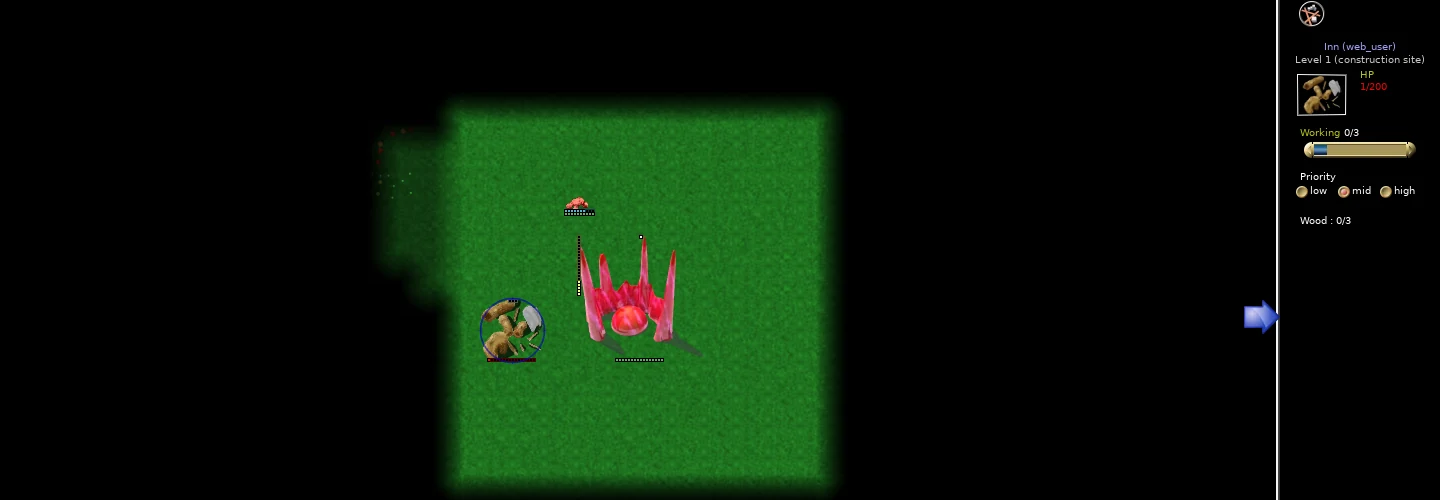
A construction site is a job awaiting materials. In this tutorial, workers collect wood for the inn. You should see the wood count rise, the construction progress increase, and finally the foundation become the completed building. Keep the game running while workers travel; a long trip is not instant construction.
Once finished, the inn’s workers fetch wheat instead. Select the completed inn and look for its labeled Food count. Watch a glob enter to eat: the Inside count can rise while the glob disappears into the building, then it comes out again.
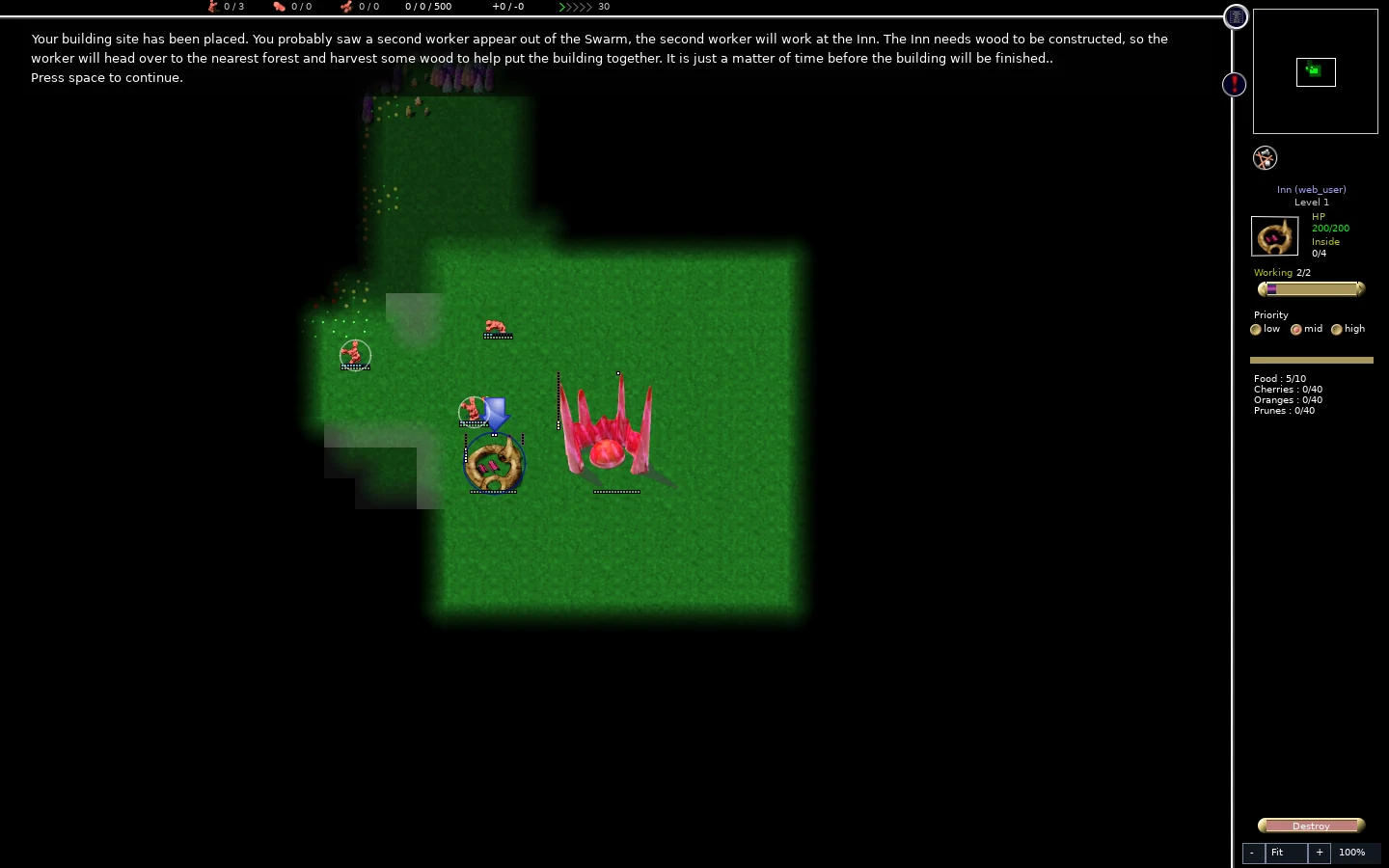
The important checkpoint is food arriving and globs eating, not simply having placed a building. A completed but empty inn cannot feed the colony.
3. Understand the Working request
Click the swarm. The Working row has arrows at either end. The number after the slash is the requested staffing; the number before it is how many workers are currently attached. For example, Working 1/3 means one worker is attached to a request for three. Asking for more does not create more workers.
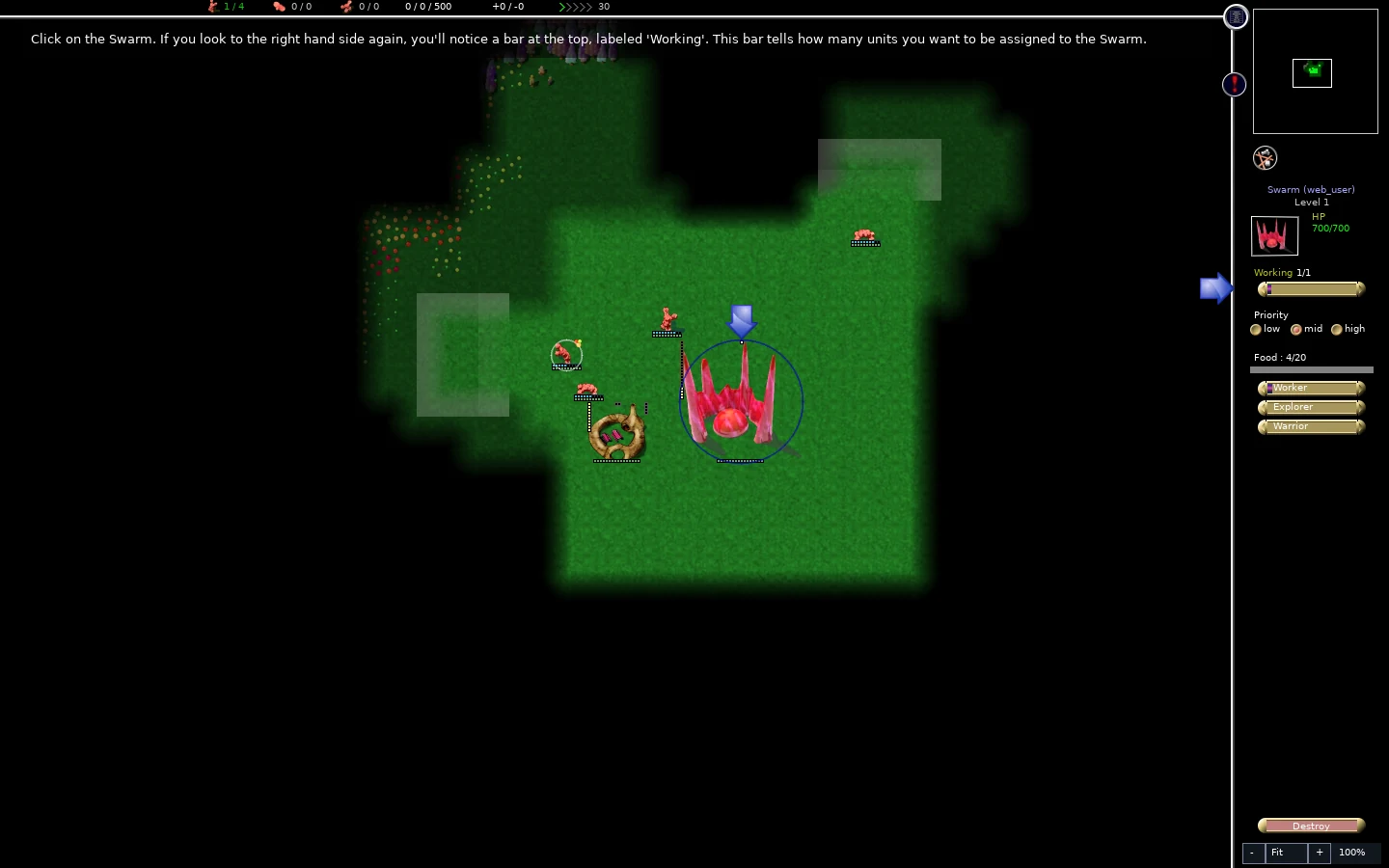
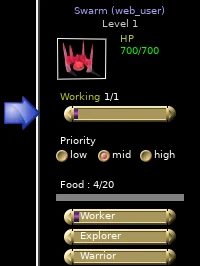
The tutorial asks you to reduce the swarm’s request to zero, then do the same at the inn. Use the left arrow on Working until the requested count reaches zero. This releases the workers from those jobs. They still need meals, and the inn’s stored food will run down. Check both buildings: the number after the slash should now be zero.
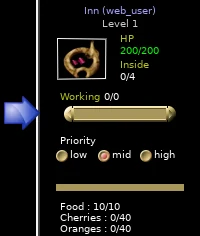
Keep this a brief demonstration. Continue into the hospital task promptly. If you stop to read or take a break, pause the game. In an ordinary match, removing all food haulers for a long time is a way to starve the colony.
An inn can also temporarily show fewer workers than requested because its food stock is full or workers are taking meals. Read the food count and any messages below it before treating a low Working count as a problem.
4. Add a hospital and restore food hauling
When the tutorial enables Hospital, place one on clear ground near your colony. Use the construction panel or B, then H. Right-click out of placement and select the foundation.
Set the hospital’s requested Working count to two, as the tutorial asks. Compare the request with the workers who actually arrive, then wait for construction to finish. A hospital provides healing; it does not replace the inn’s food supply. In the foundation detail below, Working 1/2 means one attached worker out of two requested; Wood 2/3 means one delivery is still needed.
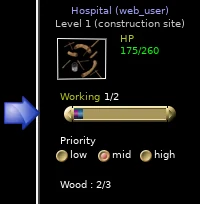
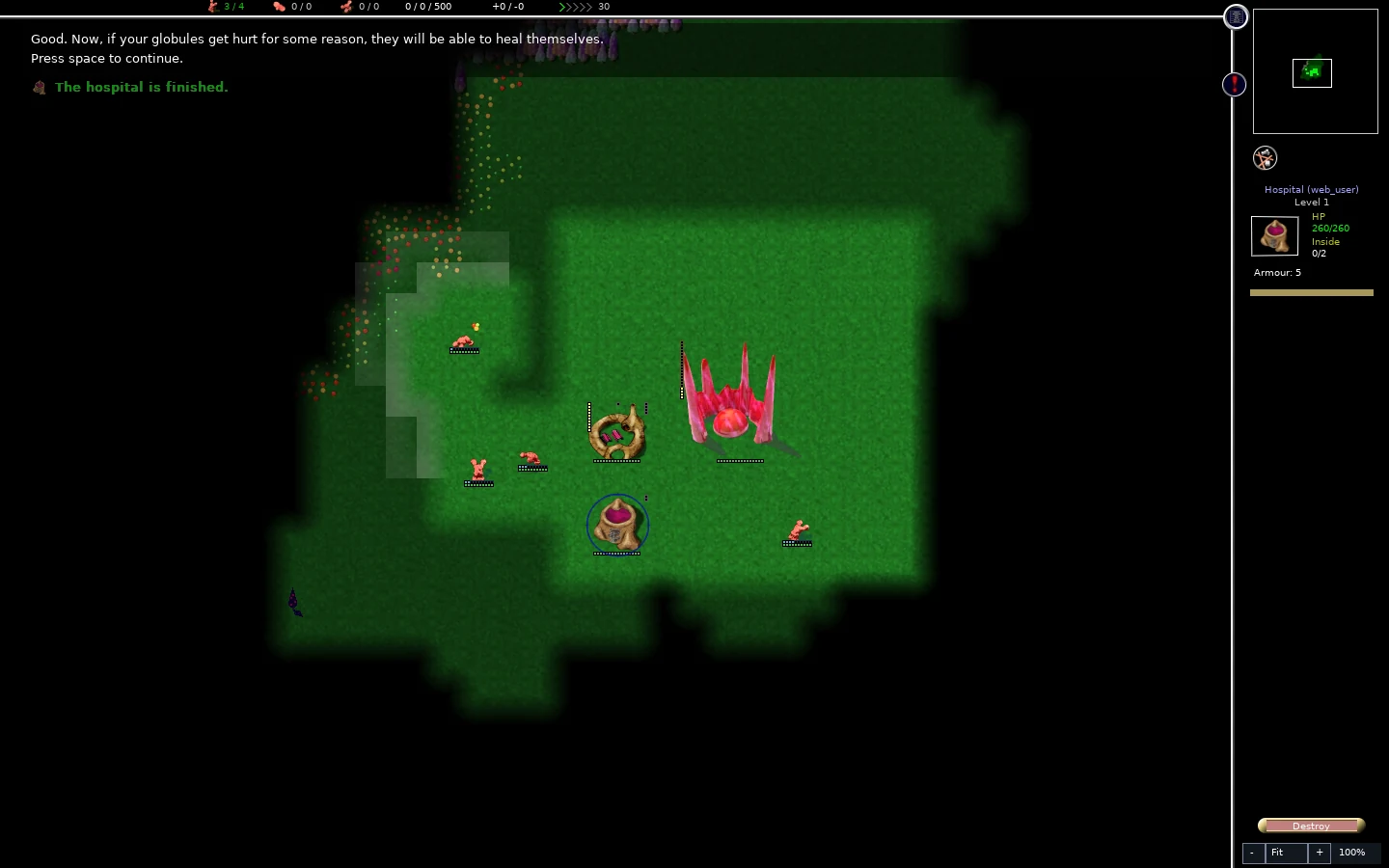
Before spending time on exploration, return to the inn and request one worker. This restores its food delivery. Later tutorial messages remind you to do this too. Check that the food stock can recover after meals, rather than relying on the food left from earlier.
5. Produce two explorers
The black surrounding area is undiscovered terrain. Workers uncover land along their routes, but explorers fly around and reveal much more of the map.
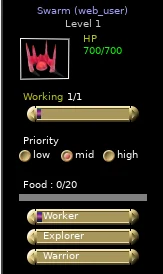
Select the swarm. Beneath its food display are three production bars: Worker, Explorer, and Warrior. These are separate from the Working bar above them.
- Increase the Explorer bar to one notch with its right arrow.
- Reduce the Worker bar to zero with its left arrow. Leave Warrior at zero.
- Request one worker on the swarm’s Working bar, so someone brings food for production.
- Confirm that the inn still requests one worker.
- Let the game run and watch the swarm produce an explorer. Continue the tutorial messages and wait for a second explorer.
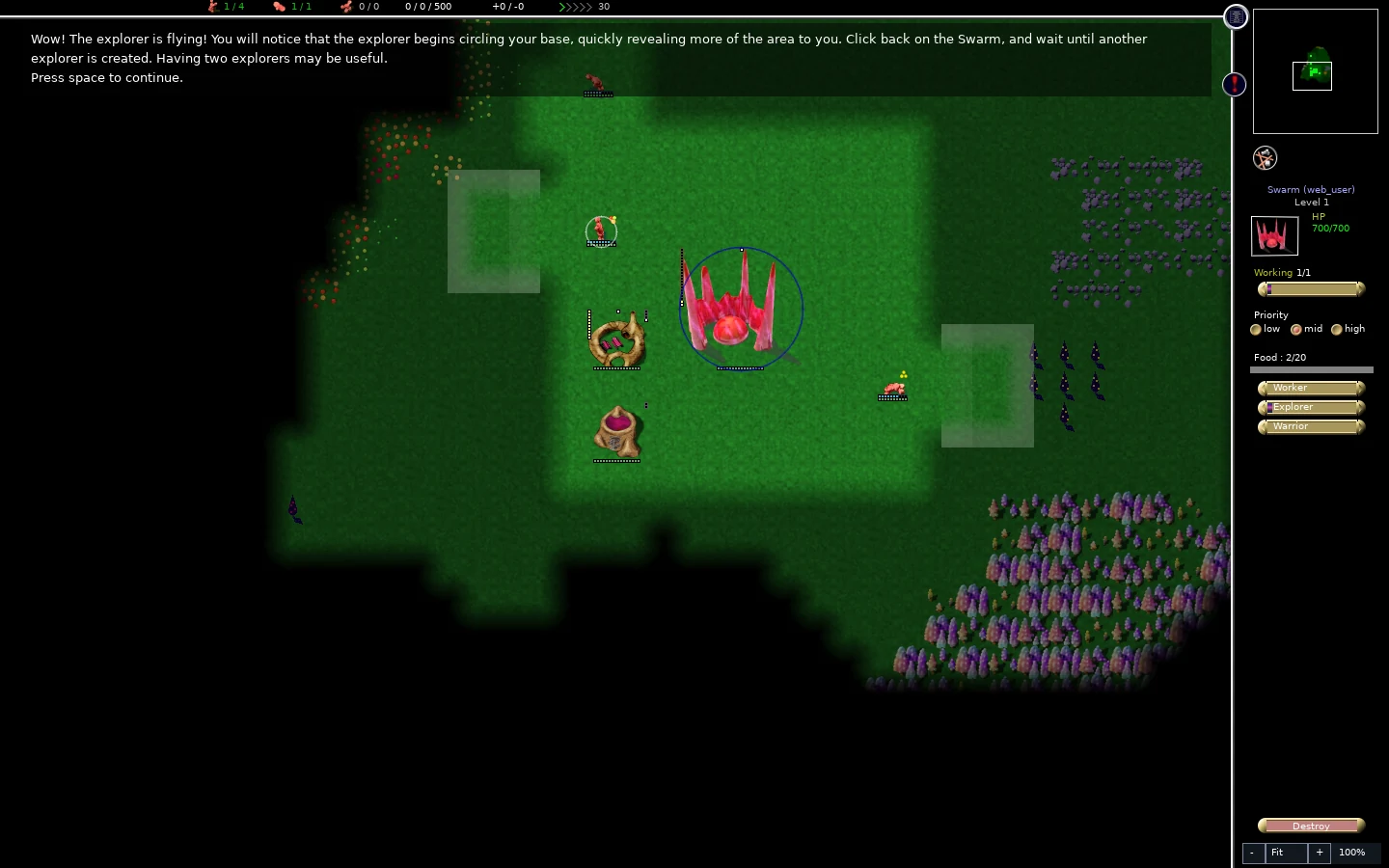
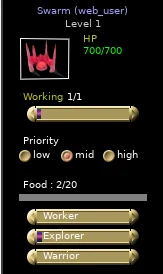
Production bars set the relative mix of future births. They do not convert your existing workers into explorers. Setting only Explorer above zero makes future production explorers while food and a usable exit are available. Leaving both Worker and Explorer above zero shares production between them; it is not a guaranteed alternating queue.
Gameplay clip
Watch the revealed land expand and compare the minimap with the small starting clearing. After the second explorer, restore Worker to one notch and Explorer to zero, as the tutorial instructs. You now know how to change the colony’s direction without directly commanding each glob.
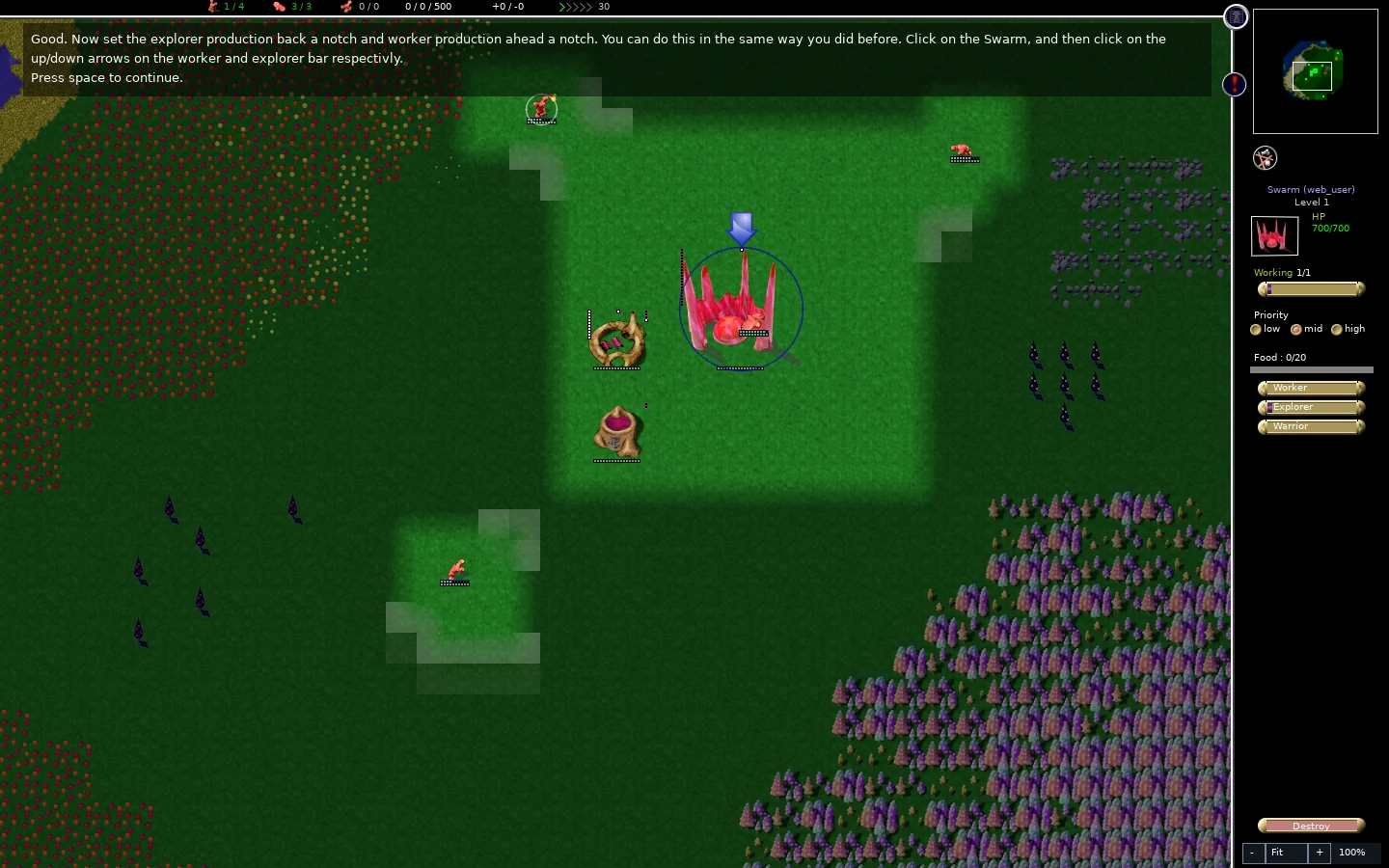
Continue the last message to finish the tutorial. Its completion dialog offers Continue playing if you want to inspect your colony a little longer.
6. Save before leaving
Open the in-game menu with Escape or the menu icon beside the minimap. Choose Save game, enter a recognizable name, and confirm. Use a new name when you want to keep an earlier milestone as well.
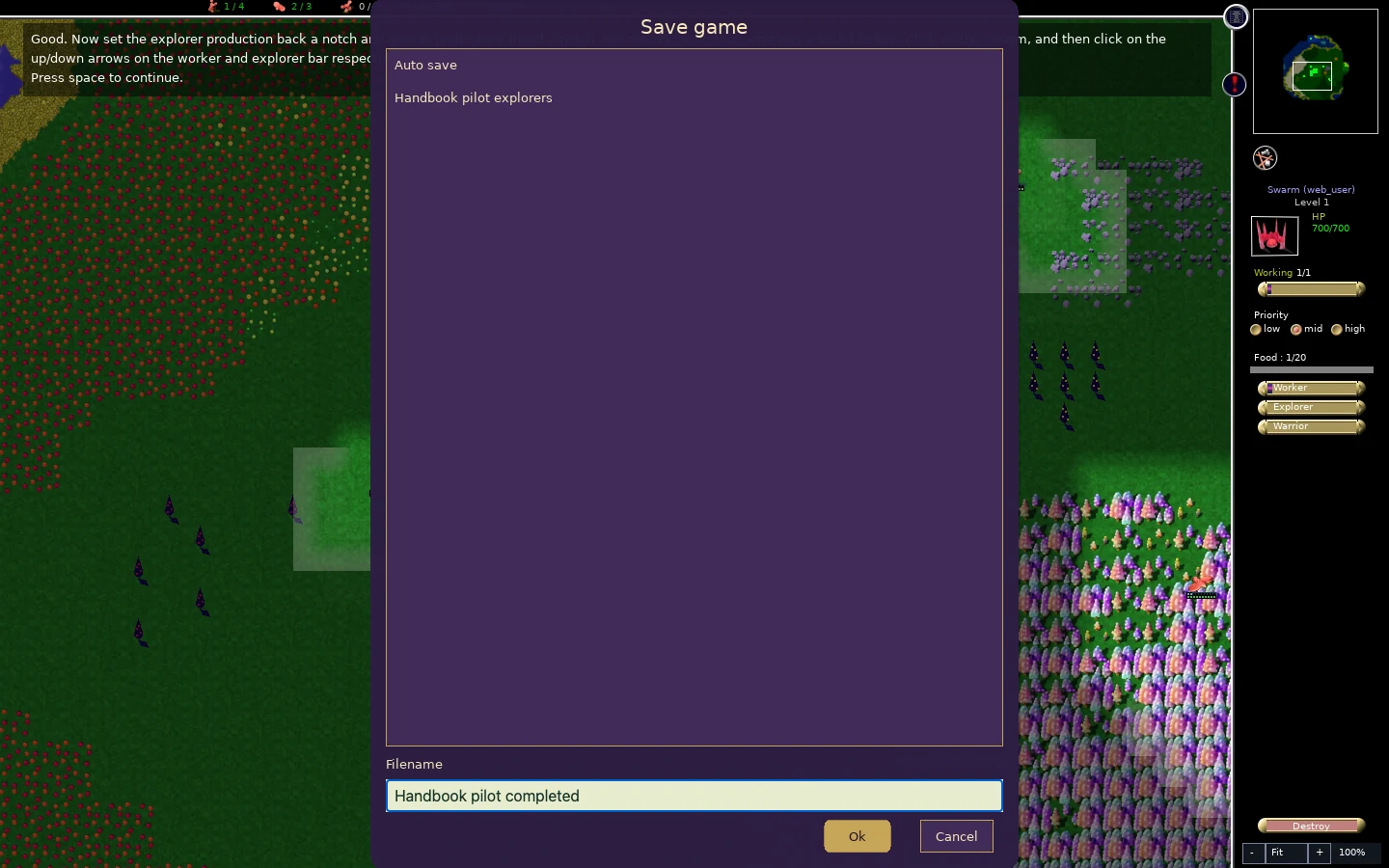
Browser saves belong to this browser’s local storage. Keep an exported copy of saves you care about before clearing site data or switching browsers: from the main menu, open Load, select the save, and choose Export. A platform account is not a substitute for that local backup. After saving, use the in-game Quit control and wait for storage to finish before closing the tab. Quit finishes storage work; it does not replace saving the match.
Fix the first problems you encounter
Scroll to compare all columns ↔
| What you see | What to check | First correction |
|---|---|---|
| An inn site stays unfinished | Wood requirement, Working request, and paths to the site and trees | Release workers from competing jobs and keep the routes open. |
| The inn is complete but food stays at zero | Its staffing request and reachable wheat | Request a worker at the inn; keep production modest while food recovers. |
| Working is lower than the request | Current stock, workers eating or healing, and the messages in the sidebar | Read the reason before raising the request again. |
| The swarm produces nothing | Food, Working request, nonzero production bars, and space at the exit | Restore food hauling and a production mix; remove obstructions at the exit. |
| A glob’s health drops after going hungry | Whether it can reach a stocked inn and then a hospital | Restore food first, keep healing available, and delay extra construction. |
| A shortcut does something unexpected | Current selection, placement mode, and tutorial message | Right-click out of placement, inspect the sidebar, and use the visible controls. |
Try the same loop against an AI
Return to the main menu and choose Custom Game. For a first practice match, use Random map and set Colonies to two on the Map tab. On Players & Teams, check that your colony says You and the other says AI. Choose Numbi – Easy for that opponent. On Game Rules, keep Standard so food, construction, and other ordinary needs still matter.
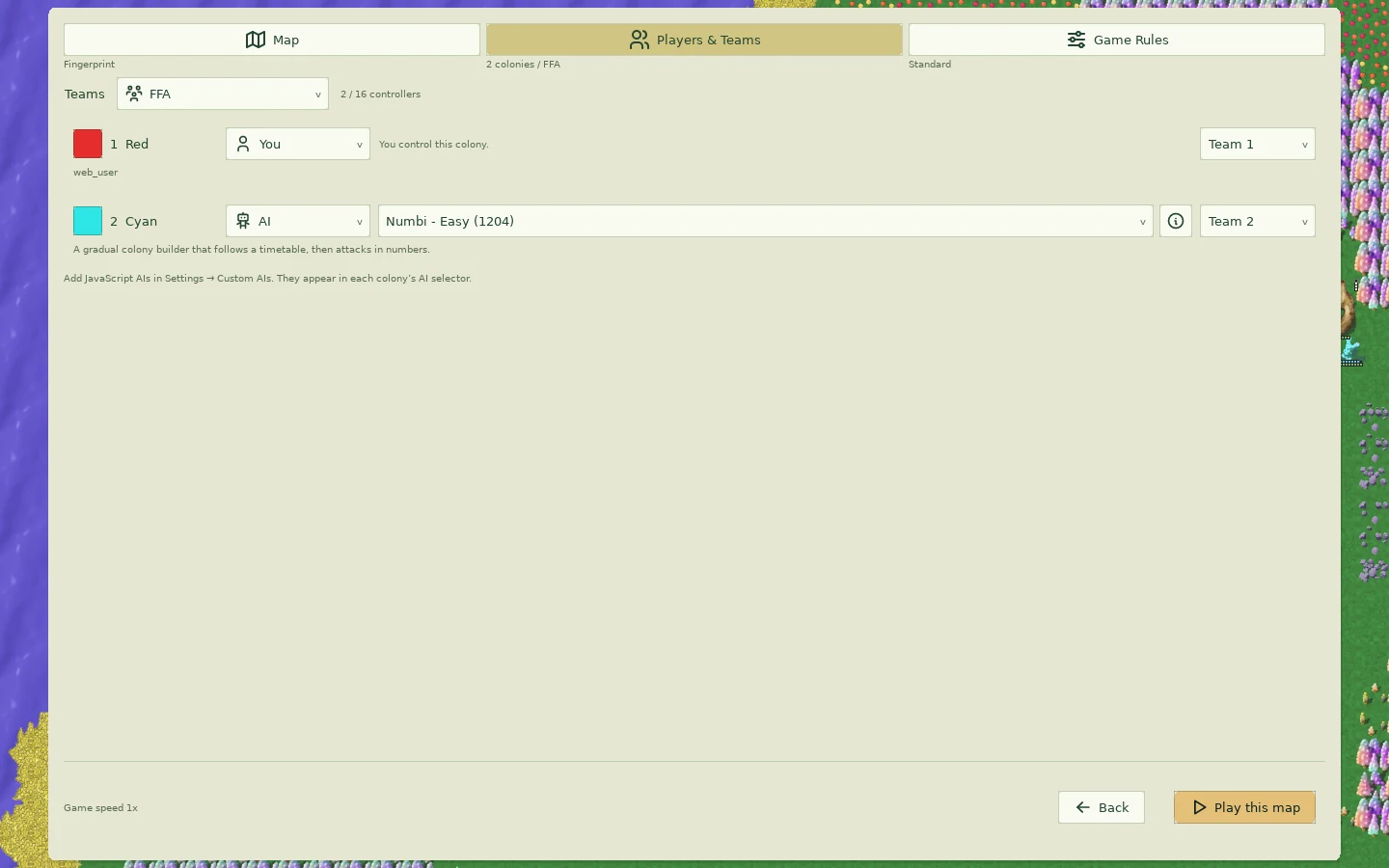
Choose Play this map once the preview is ready. Your exercise is to establish a supplied inn, keep the swarm supplied, and produce a few explorers before taking on more projects. The landscape will differ from the tutorial: inspect the food, wood, and walking routes before placing the inn. Numbi is still an opponent, so this practice is less forgiving than the tutorial.
Next, learn how to organize jobs and flags, then keep a growing colony fed.